
Referencing the preview while filling out the form is useful for seeing how your images and copy will appear in both the email and landing page prior to receiving a proof from our team. It helps confirm that images are clear and fit within the templated sizes after auto-resizing, videos play properly, and that text wraps correctly, allowing you to catch potential issues early.
The preview will automatically populate as you fill in each field, and upload images and videos. You can also toggle between the landing page and email view at the top by clicking each button (the orange text is the current view).

You can also expand the preview to view details more closely by clicking the expand button in the top left of the preview section, making the landing page/email full screen. To exit full screen, click the decrease symbol on the top left section.
*Please note that previews are intended as a visual reference only, and may not perfectly reflect the final landing page and email specifications exactly. Minor variations may appear in the final proof.
An example of part of the preview section for a B2C landing page:
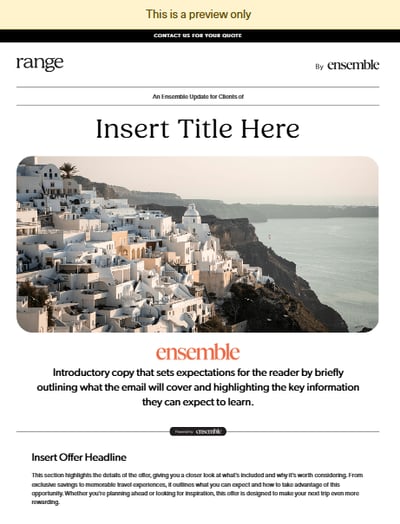
An example of part of the preview section of a B2C email:
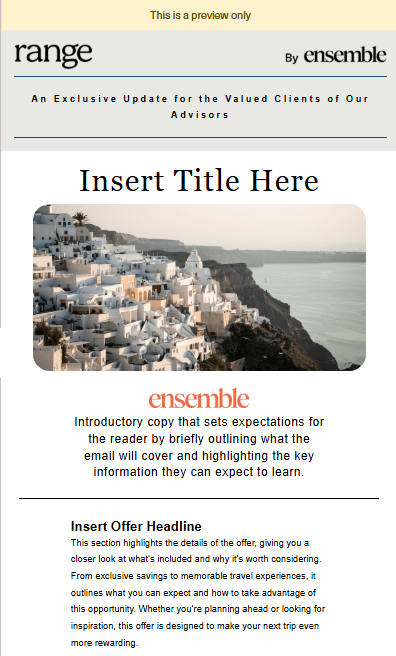
A reminder that B2C emails will be Range and member-branded, and B2B emails will be Ensemble-branded.