
Rich text fields make it easy to format and enhance your content—no technical skills required. Please note that not all rich text options listed here are available for every field.
List of rich text fields:
-
Type directly into the field, and use Undo (left arrow) or Redo (right arrow) to quickly fix or restore changes.
-
Highlight text and apply Bold or Italic to add emphasis.
-
Use Superscript and Subscript for special formatting such as registered trademarks
-
Organize information with Bulleted Lists for grouped items or Numbered Lists for inclusions or terms
-
Adjust text layout using Left Align or Right Align to fit your design.
-
In Support Copy, Advisor Terms, and Consumer Terms, you can also add hyperlinks. Select the text you want to link, apply the hyperlink option, and connect readers to helpful pages or resources.
These tools help you create clear, readable, and well-structured content quickly and confidently.
Adding a Hyperlink
- Click the link icon
- Copy and paste your desired URL into the URL field
- The "Text to display" is what readers can see, and this can remain as the URL, or you can add a call to action or other display text
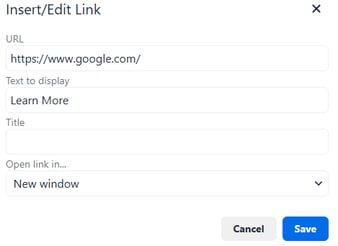
- Best practice is to allow users to open external links in a new window. However, when linking to the member portal, it’s preferable to keep users in the current window
- When you are done filling out the fields, click Save
- Once the link is in the text field, you can copy and paste the link elsewhere using Ctrl + C and Ctrl + V, edit the link, remove the link, and open the link
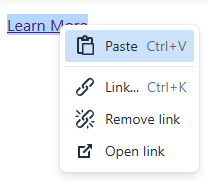
Tip: It’s always a good idea to test the link you’ve pasted to ensure it works as intended and doesn’t redirect users to the wrong site.