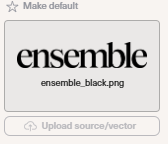
The Ensemble team has selected a default logo for most companies, however for newer partners or if your company's branding has changed, follow the steps below to upload a file.
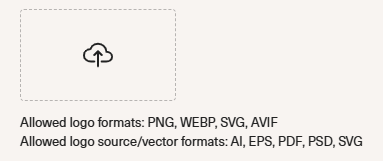
Start by clicking upload, and choose the transparent background logo file that is preferred (ensure the size is large enough to be viewed, typically a minimum of 250 px wide and in PNG, WEBP, SVG, AVIF format only).
Once you see your logo, you can choose a logo to be the default logo, by clicking the star above the desired logo.
*Note that this logo will be used across all Ensemble platforms, including the member portal partner profile page (please do not select a white logo as the default for visibility)
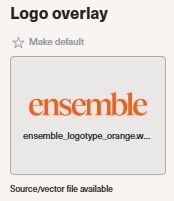
For products that need high-resolution logos, it will be a requirement to upload a vector file of your logo to be used in print production for Range magazine products as well as Event applications for the best quality (AI, EPS, PDF, PSD, or SVG file types only).