
Uploading an Image (for this example, we are using a Hero image)
-
Click upload
- Drag and drop your image from your computer files or browser downloads, or paste the url of the desired image from the internet
- Once uploaded, you can crop the image by clicking the blue pencil icon
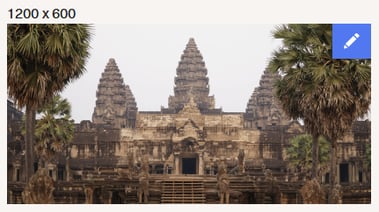
- Utilize the grey borders to adjust the image, then click crop
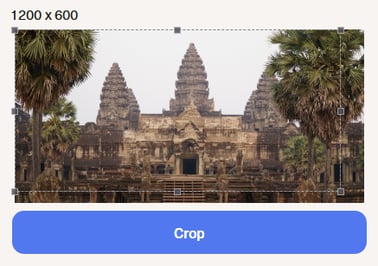
- The new altered image will appear with the changes, and you can see the updated version on the preview on the right side of the screen
- Repeat for remaining images
Quick Tips:
- Do not include images with text or logo overlays, in order to abide by brand guidelines, otherwise our team will have ask to for new images
- Ensure images are of a larger size (ideally at least 1500 x 750 px or 1000 x 1200 px) to ensure optimal image quality when images are adjusted to the templated size or being cropped
- Be mindful of support images being portrait, and hero images being landscape when choosing images for these sections, so as not to crop the main subjects out (people, ships, city landmarks, etc.)
- For ads with overlays, ensure main subjects are not meaningfully obstructed by the overlay, or crop images accordingly
- Logos should have a transparent background to appear seamless for users in dark mode
Uploading an Image with Overlays (for this example, we are using the Connections Ad)
- Click upload
- Drag and drop your image from your computer files or browser downloads, or paste the url of the desired image from the internet
- The final ad image with the Partner Spotlight overlay will appear
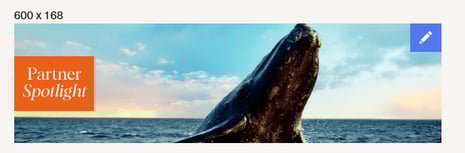
- Adjust the visible part of the image by clicking the blue pencil icon to adjust the crop
- Be mindful of the placement of the overlay, and ensure main subjects (people, ships, hotels, etc.) are not obstructed, and the image resolution looks good