
MarkUp is an easy way to communicate changes that need to be made to our team.
*Please note that you must navigate back to the app and click SUBMIT once both proofing links have been accessed on MarkUp, and edits are noted.
How to Leave a Comment
-
Once you access MarkUp, your cursor will be a blue "T".
-
Click anywhere on the page you want to reference that needs editing (the more precise, the better for copy).
-
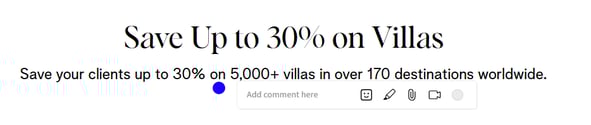
Type your comment in the text box.
- You can also attach a file or image (paperclip) to indicate what you would like the copy/image to be replaced with, or provide missing information.
-
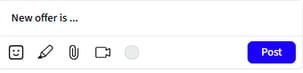
Once you have written your comment and/or attached an image or file, click Post.
-
This will post your comment, and you can see a list of all comments made on the left sidebar.
-
Now your cursor will become a "T" again, and you can continue leaving more comments.
- When you are done leaving comments, go back to the app and click "Submit" button to push the edits to our team. If you do not go back to the app and click submit, our team will not be updated that edits are needed, and you will receive a reminder email to review your proof.
How to Expand Sections
-
To expand certain sections, such as itineraries, product details, or terms and conditions, switch from "Comment" to "Browse" in the top bar

-
In "Browse" mode, you can view the entire image or landing page, and click the + sign to expand the section and view details.

-
Switch back to "Comment" mode to leave comments on the expanded sections.

-
When you are done leaving comments, go back to the app and click "Submit" to notify our team that you have reviewed the proofs and edits are needed.