.png?width=350&height=83&name=EN_MemberMarketing%20(3).png)
Follow along with our how-to video or use the step-by-step guide below:
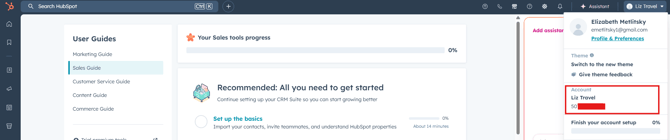
Step 1: Open the HubSpot upgrade quote link sent to your email. Confirm that the Hub ID at the top of the quote matches the Hub ID in your HubSpot account. If it doesn’t match, please email us.
Quote: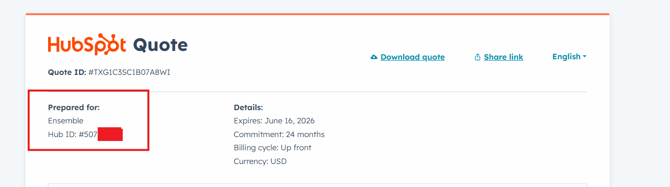
Hub ID:
Step 2: Scroll down and click Checkout.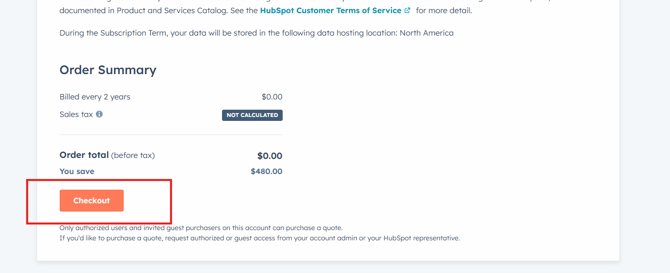
Step 3: Scroll down, enter your company details, then click Continue to payment method.
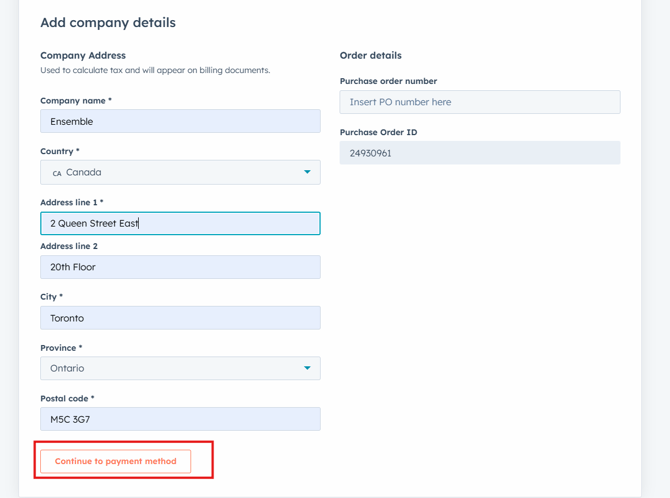
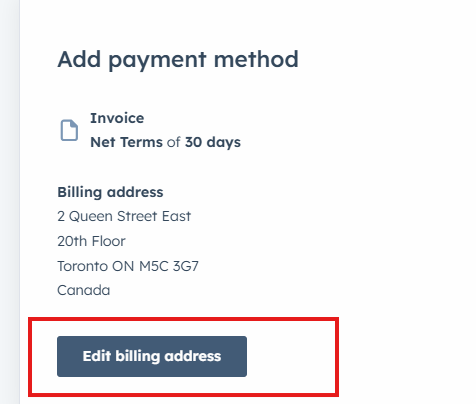
Step 4: Skip the payment section—do not edit the billing address or add a payment method. Continue scrolling.
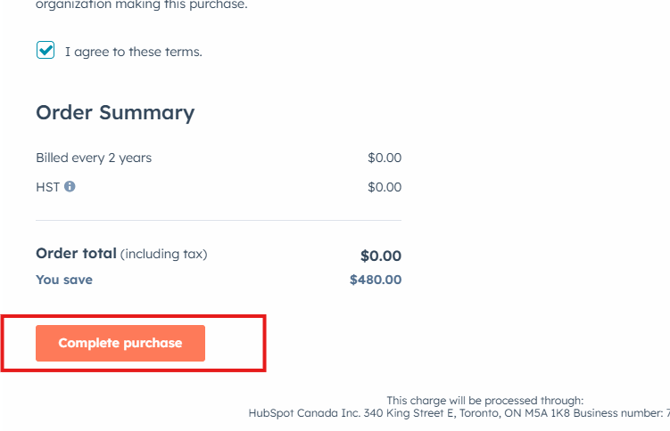
Step 5: Agree to the terms and click Complete purchase.
Step 6: Click Let’s get started—you’re all set!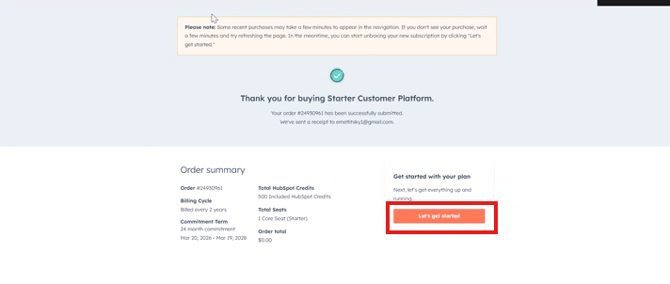
If you have any questions, please contact us.