.png?width=350&height=83&name=EN_MemberMarketing%20(3).png)
Communication Channels is how you sync a contact to Ensemble and identify what type of marketing you want that contact to receive. Digital refers to email marketing. Direct Mail refers to solo-partner printed marketing pieces, such as postcards and brochures. Print Marketing refers to our Range publication.
Note: Bulk editing is typically used for Digital and Direct Mail as you are able to add an unlimited number of contacts to these Communication Channels. Print is based on the allocation provided.
Start by logging into your HubSpot account and heading to the Contacts section by hovering on the icon in the left-hand navigation.

From here, you can bulk edit your communication channels in two simple steps:
- From this view, you can click on the checkbox next to "Name". If you have more than one page of contacts, click "Select All". Then click "Edit". If you have not yet updated your columns and do not see communication channels, please find the how-to guide here.

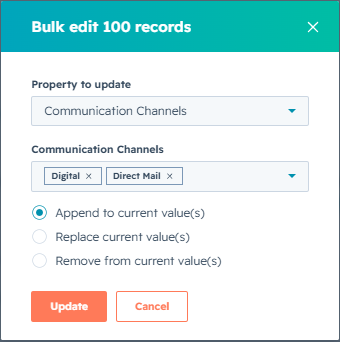
- In edit, under "Property to Update," search for and select "Communications Channels". Under Communication Channels, select which channel you would like all selected contacts to receive.
- Select "Append to current value(s)" to add the selected channel to all contacts without removing any that have been previously selected.
- Select "Replace current value(s)" to override the previously selected channels with the newly selected option.
- Select "Remove from current value(s)" to remove the selected channels.
- Select "Append to current value(s)" to add the selected channel to all contacts without removing any that have been previously selected.
Note: Please note, once a communication channel is selected, that contact will sync to Ensemble. If the contact no longer wants to receive any Ensemble Marketing, please do not delete them. Instead, select the "Opt out of all" communication channel. If "Opt out of all" is selected, it will override all other individual communication channel preferences.